SIDEWOVEN / GUIDE
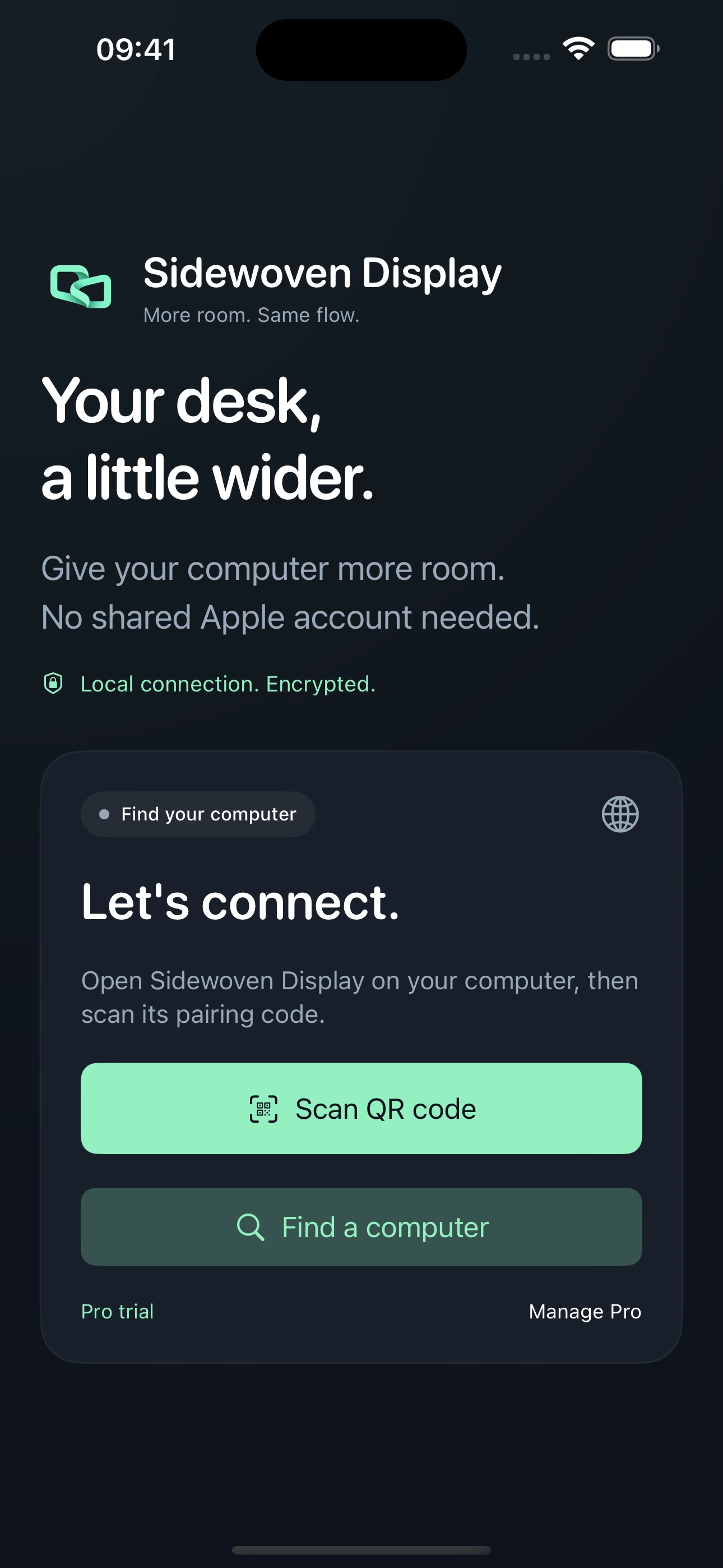
Turn your phone or tablet into a computer companion panel
The Sidewoven companion panel turns a phone or tablet into a control surface for your computer. Instead of another desktop image, it shows shortcuts, applications and performance information. It is useful when you want tools beside you rather than windows squeezed onto a small phone screen.
Last checked:
If the panel connects but actions do not work
Check that panel connections and the actions you want are allowed in the host’s Panels section. Permissions for screen connections do not automatically enable application launching or panel controls. On Mac, enable Accessibility where required. Grant permissions only for the actions you intend to use.
Start the panel
- Open the Mac or Windows host and the iPhone, iPad or Android receiver. Check minimum OS versions on the compatibility page.
- Pair with QR, computer discovery or pairing text. Approve the new device on the host.
- Choose companion-panel mode on the phone/tablet before starting the connection. Use Wi-Fi or USB.
- Arrange shortcuts and applications in the desktop panel settings. Enable the relevant host permissions for panel actions; Mac control actions may require Accessibility permission.
Everyday uses
Keep frequent actions such as copy/paste or screenshots within reach while writing. Open your applications with a tap. Check CPU and memory use without switching your main task to another window. Displayed information belongs to the connected computer.
The interactive panel on this website uses sample data. Live computer information and real commands work in the installed app with a paired device and the relevant permissions.
Second screen or panel?
A second screen is for moving desktop windows; the panel is for keeping tools and controls nearby. Choose either use on the same phone/tablet. The panel is not available on TV. It does not promise to relay every system notification, provide internet remote access or integrate with every application.
Account, Pro and privacy
The desktop app is free. Check second-screen Basic/Pro limits and purchase options in the app; the first screen connection starts the 24-hour Pro trial. Panel permissions are separate from the Pro rules for screen audio/input: panel actions are controlled by their own host permissions.
Screen and panel connections are local. Account sign-in and purchases use online services separately, so the whole app is not described as entirely offline or account-free. Remove a device pairing or disable permissions when you no longer want access.