SIDEWOVEN / GUIDE
Use an iPad as a second monitor for Windows
Sidewoven creates an extra desktop display on your Windows computer and shows it on your iPad. Move a document or browser window to the iPad while keeping your main work on the computer screen. This extends your desktop rather than simply showing the same image twice.
Last checked:
What you need
You need 64-bit Windows 10 version 2004 or later, or Windows 11; an iPad running iPadOS 17 or later; and Sidewoven on both devices. The desktop app is free. For initial pairing, connect both devices to the same reachable local network.
Connect over Wi-Fi
- Open the Windows host. Complete the required Sidewoven display-driver installation and allow its local-network connection through your firewall.
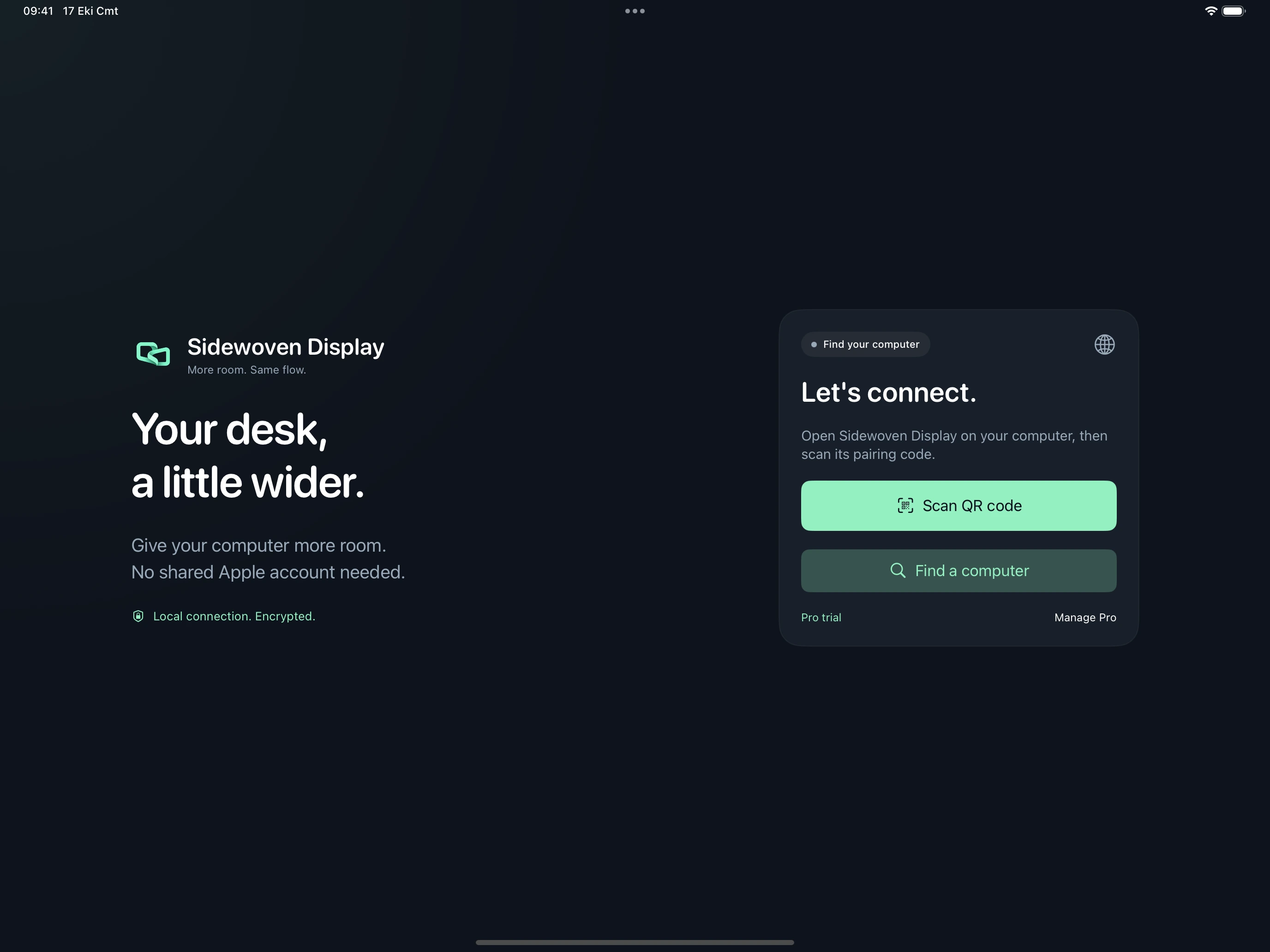
- Open Sidewoven on iPad and allow local-network access. Scan the computer’s QR code or select it in computer discovery. You can also paste the pairing text without using the camera.
- Check the iPad name in the incoming request on Windows and approve it. Start second-screen mode on the iPad.
- In Windows Settings → System → Display, arrange the displays to match your desk. Drag an open window toward the iPad display.
Use a USB cable
Use a data-capable USB cable, not a charge-only cable. Windows needs Apple Devices / Apple Mobile Device support. Approve the “Trust This Computer” prompt on iPad. Start the connection using your saved pairing and check that the app reports USB as its transport.
USB is an alternative connection using the same pairing. A reachable local network can restore the connection after unplugging; switching may briefly interrupt the picture. For the simplest first setup, complete pairing over the local network before using the cable.
Audio and touch controls
Pro or the 24-hour trial enables mouse-style touch gestures, keyboard input and computer audio on iPad. Enable the relevant permissions and audio route on Windows. Basic does not include audio or remote input. Apple Pencil drawing and pen input are also supported. Pressure data from pressure-capable pencils is also sent to the desktop app.
If the computer does not appear
Guest Wi-Fi can isolate devices. Use the same reachable network and check whether a VPN or firewall blocks local connections. Allow the required Sidewoven connection rather than disabling security protections. Apple Sidecar does not support Windows computers; Windows requires a separate host app.