SIDEWOVEN / GUIDE
Use Apple TV or Android TV as a second computer display
The Sidewoven TV receiver shows an extra display created by your Mac or Windows computer. Keep a presentation or reference window on the big screen. The TV remote operates the connection interface; it does not control your computer desktop.
Last checked:
Mirroring versus extending your desktop
Mirroring repeats the computer’s existing picture on the TV. Sidewoven’s second-screen mode creates a separate desktop area: move a presentation or another window to the TV while continuing work on the computer. If a window seems missing, check where the extra display is positioned in your computer’s display settings.
If the TV cannot find the computer
Keep the host running and connect the TV and computer to the same reachable local network. The computer can use Ethernet while the TV uses Wi-Fi, provided the router allows communication between them. Check guest-network isolation and the host’s local-network/firewall permissions. The eight-digit code does not provide an internet connection.
Which TVs are supported?
Apple TV needs tvOS 26 or later; Android TV needs Android 8 or later. Your computer needs macOS 26 or later, or 64-bit Windows 10 version 2004 or later. There is no native Sidewoven receiver for Samsung Tizen or LG webOS. Connecting a compatible external Apple TV or Android TV device to the television’s HDMI input is a separate option.
Connect the TV
- Open the desktop host and TV receiver. Put both on the same reachable local network. Use Ethernet on the TV if available, or choose a strong Wi-Fi connection.
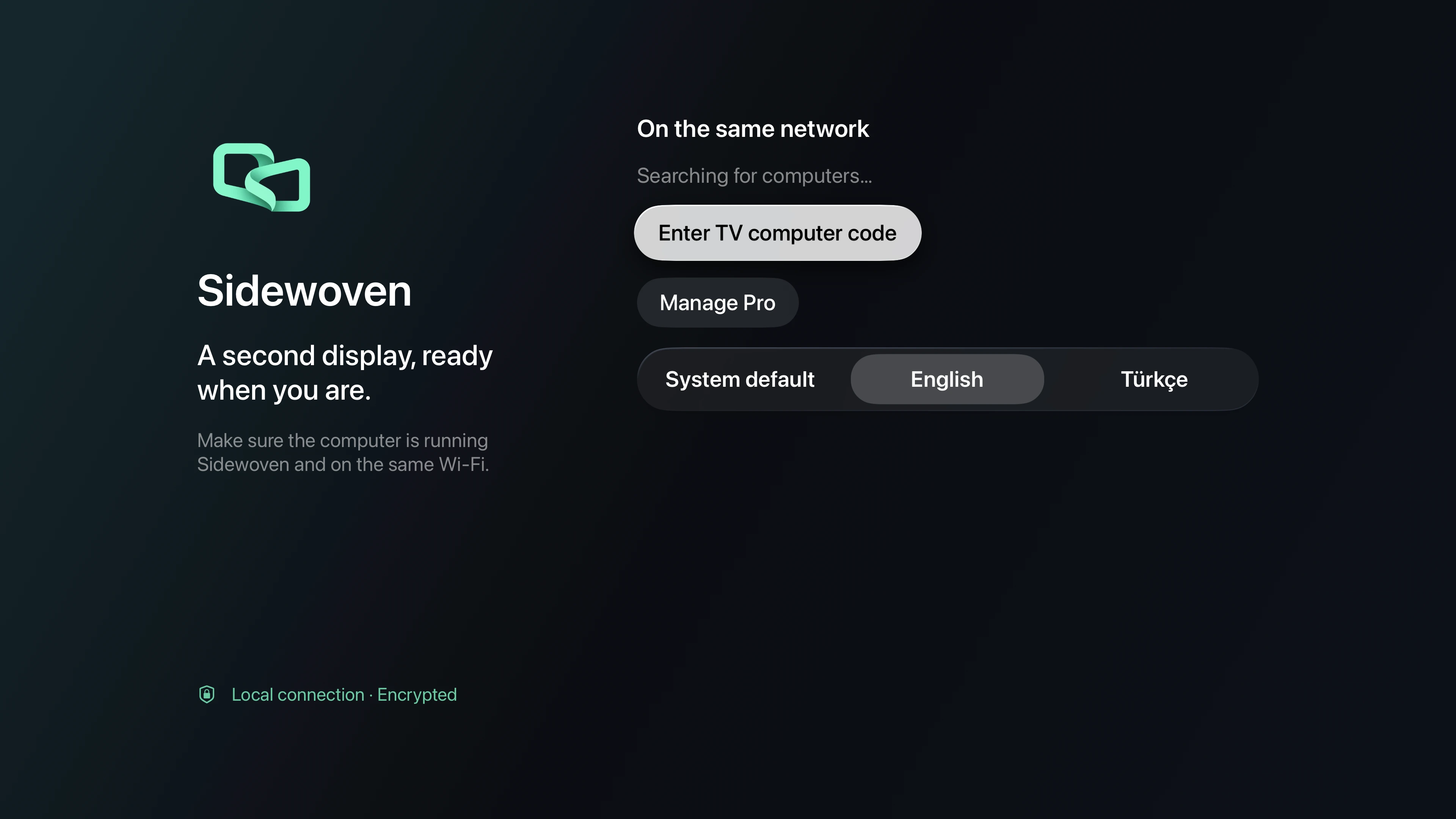
- Select your computer in the TV’s discovery list. If it is missing, enter the 8-digit TV computer code shown on the host. You do not need to type the long pairing text with the remote.
- Check and approve the incoming device request on the computer. Start the display connection from the TV.
- Arrange the extra display in your computer’s display settings. Move a presentation or document window onto it. Use the computer’s mouse and keyboard for desktop actions.
How TV differs from a phone or tablet
TV receivers connect over the local network, with no TV USB route. The companion panel and touch desktop controls are phone/tablet features. Basic supports one client; Pro supports up to two independent clients connected to the same computer.
Resolution and content limits
Basic offers up to 1920×1080 and 60 FPS in 10-minute sessions. Pro/trial offers a 4K option on supported TV and computer hardware; sustained 4K60 is not guaranteed. Start at 1080p and raise quality when the setup supports it.
DRM-protected streaming-service video may not be capturable. Sidewoven does not bypass protected content. Use your own presentations, documents and ordinary desktop windows.