SIDEWOVEN / GUIDE
Use an iPad as a Mac second screen with different Apple Accounts
When a Mac and iPad use different Apple/iCloud accounts, they do not meet Apple Sidecar’s same-account requirement. Sidewoven does not impose that requirement: use your iPad as a second screen without changing either device’s Apple Account. Working across different accounts is the need that originally inspired Sidewoven.
Last checked:
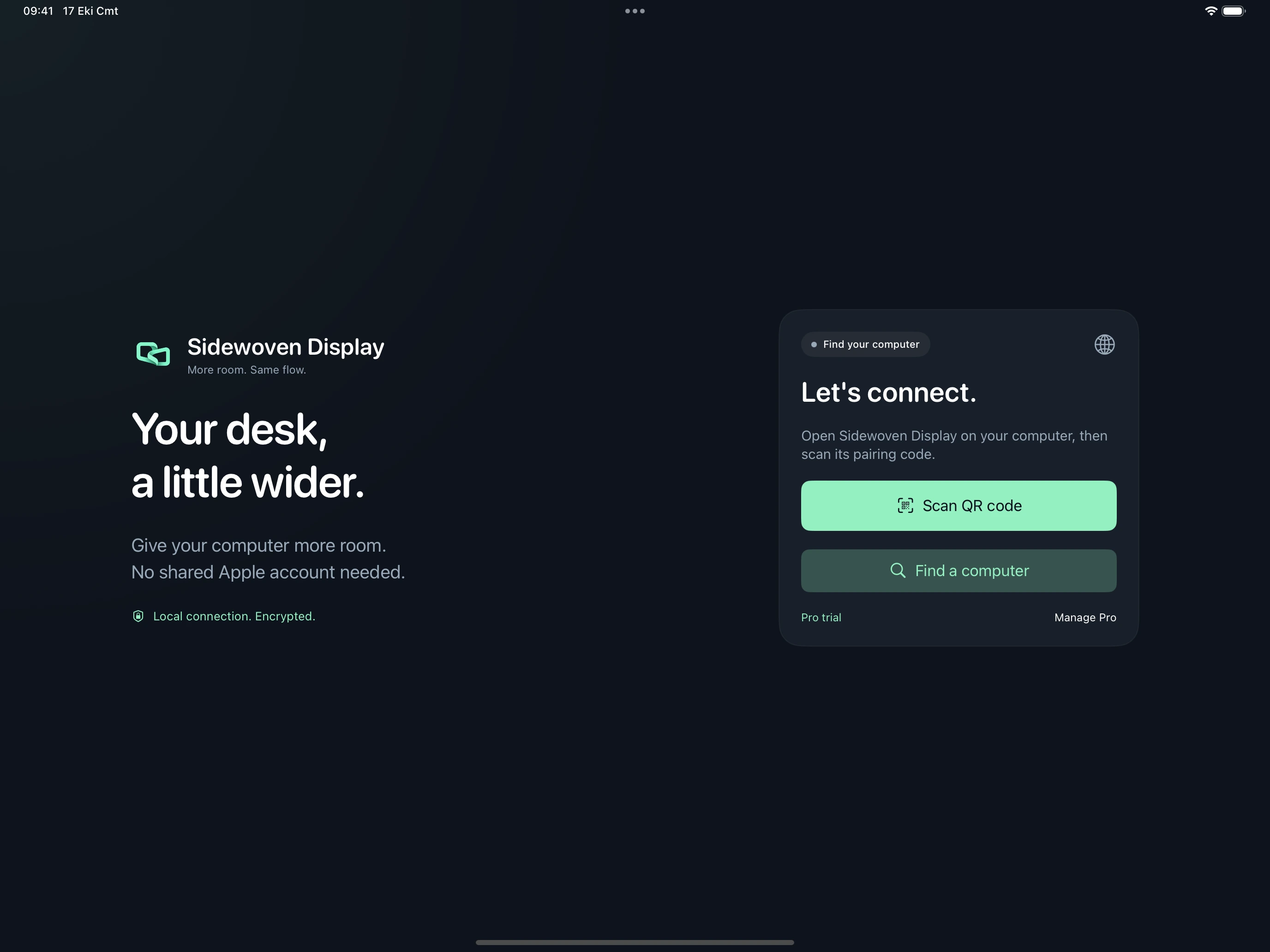
If your Mac cannot find the iPad
Sharing a Wi-Fi name is not always enough: guest networks or client isolation can prevent devices from reaching each other. Keep Sidewoven open on the iPad and check Local Network permissions on both devices. Pairing text does not bridge isolated networks.
If connected but no picture appears, check Screen & System Audio Recording permission on the Mac. For USB, use a data cable, unlock the iPad and approve the trust prompt. Verify the active Wi-Fi or USB transport in the app.
Why Sidecar does not connect
Apple requires both Mac and iPad to be signed in to the same Apple Account with two-factor authentication for Sidecar. This is an additional condition beyond supported hardware and OS versions. A work computer and personal iPad, or devices owned by different family members, may not meet it.
Sidewoven does not change Sidecar’s accounts or security checks. It establishes its own connection using a desktop host and receiver app. You do not need to sign out of Apple or combine your devices under one iCloud account.
Which account needs to match?
Basic local screen connections do not require a shared Apple/Google account or a Sidewoven account. Devices pair with explicit approval on the computer. Sign in to the same Sidewoven account to purchase, restore and use Pro across supported receivers. This does not mean the Mac and iPad need the same Apple Account.
Purchases and restoration follow the relevant store-account rules. Your Apple Account, store purchase and Sidewoven account have different roles.
Connect your Mac and iPad
- Check for macOS 26+ on the Mac and iPadOS 17+ on the iPad. Install the free Sidewoven host on Mac and the receiver app on iPad.
- Connect both devices to the same reachable local network. Allow Screen Recording on Mac and local-network access on iPad.
- Scan the Mac’s QR code on iPad, choose the computer in discovery or paste its pairing text. Approve the iPad’s request on Mac.
- Start the second screen. Arrange it in Mac System Settings → Displays and move a window to the iPad.
USB, audio and controls
For USB, use a data cable and approve the iPad’s computer-trust prompt; the same pairing is used. Pro or the 24-hour trial enables audio and mouse-style touch/keyboard control. Mac audio needs the Sidewoven virtual audio driver; control needs Accessibility permission.
Before buying
The first screen connection starts a 24-hour Pro trial. Basic offers 10-minute display sessions up to 1920×1080 and 60 FPS; Pro is a one-time purchase. Sidewoven requires macOS 26 on Mac; do not assume an older Mac is supported just because Sidecar’s account rule is the problem. If both devices do share an Apple Account and meet Sidecar requirements, built-in Sidecar is also an option.